
Want to set up an AI chatbot on your website but worried it will take hours of configuration? Think again. With MoyoChat, you can go from zero to a fully functional AI assistant for your website in under three minutes — no coding, no developers, no headaches.
This AI assistant setup guide walks you through every step with detailed explanations, so you know exactly what is happening and why. Whether you run a trade business, a professional services firm, or an e-commerce store, the process is the same.
Before You Start
All you need is:
- A MoyoChat account (sign up free here — no credit card required)
- Your website URL
- Access to your website's HTML (or your CMS dashboard if you use WordPress, Squarespace, Wix, etc.)
That is it. No API keys, no server configuration, no third-party tools.
Step 1: Enter Your Website URL
After signing up and logging into your MoyoChat dashboard, you will see a simple input field asking for your website URL. Paste your homepage URL (e.g., https://www.yourbusiness.com.au) and click "Create Assistant".
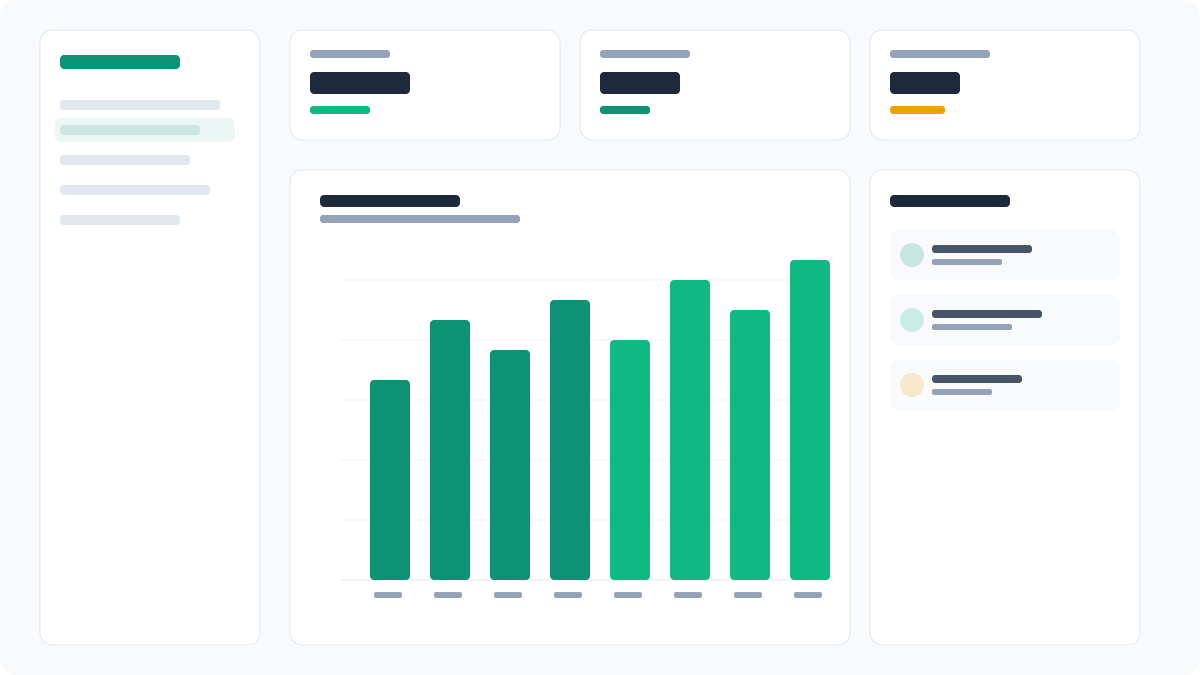
What happens behind the scenes
MoyoChat's crawler visits your website and indexes every page it can find. It reads your:
- Services and offerings: What you do, where you operate, and who you serve.
- Pricing information: If published on your site, the AI will learn your rates.
- FAQs: Common questions and answers are absorbed automatically.
- Contact details: Address, phone number, email, and operating hours.
- About page: Your story, team, and qualifications.
This content becomes the AI's knowledge base. The more comprehensive your website, the smarter your assistant will be right out of the box.
Tips for best results
- Make sure your website content is up to date before crawling.
- If you have important information on subpages, ensure they are linked from your main navigation so the crawler can find them.
- You can add additional pages or documents to the knowledge base later.
Step 2: Review the Crawl and Training
Once the crawl is complete (usually 30 to 60 seconds for a typical small business website), MoyoChat shows you a summary of what was indexed. You will see:
- The number of pages crawled
- Key topics and services identified
- Any pages that could not be accessed (e.g., password-protected areas)
Testing your assistant
At this point, you can test the assistant right in the dashboard. Type a question a visitor might ask — for example, "Do you offer weekend appointments?" or "How much does a standard service cost?" — and see how the AI responds.
If the response is not quite right, you can:
- Add supplementary content to the knowledge base (e.g., paste in text that is not on your website).
- Adjust the assistant's instructions (e.g., "Always recommend booking a consultation for complex queries").
- Re-crawl specific pages if content has changed.
Step 3: Customise the Widget
Now for the fun part — making the chat widget look and feel like part of your brand. The customisation panel lets you adjust:
- Brand colours: Match your primary and accent colours to your website's design.
- Welcome message: The first thing visitors see when the widget loads. Examples: "G'day! How can we help you today?" or "Hi there — ask me anything about our services."
- Widget position: Bottom-right (default) or bottom-left.
- Assistant name and avatar: Give your assistant a name (e.g., "Mo" or your business name) and upload a logo or avatar.
- Lead capture fields: Choose which fields to collect — name, email, phone, custom fields.
- Tone of voice: Professional, friendly, casual — you decide how the AI communicates.
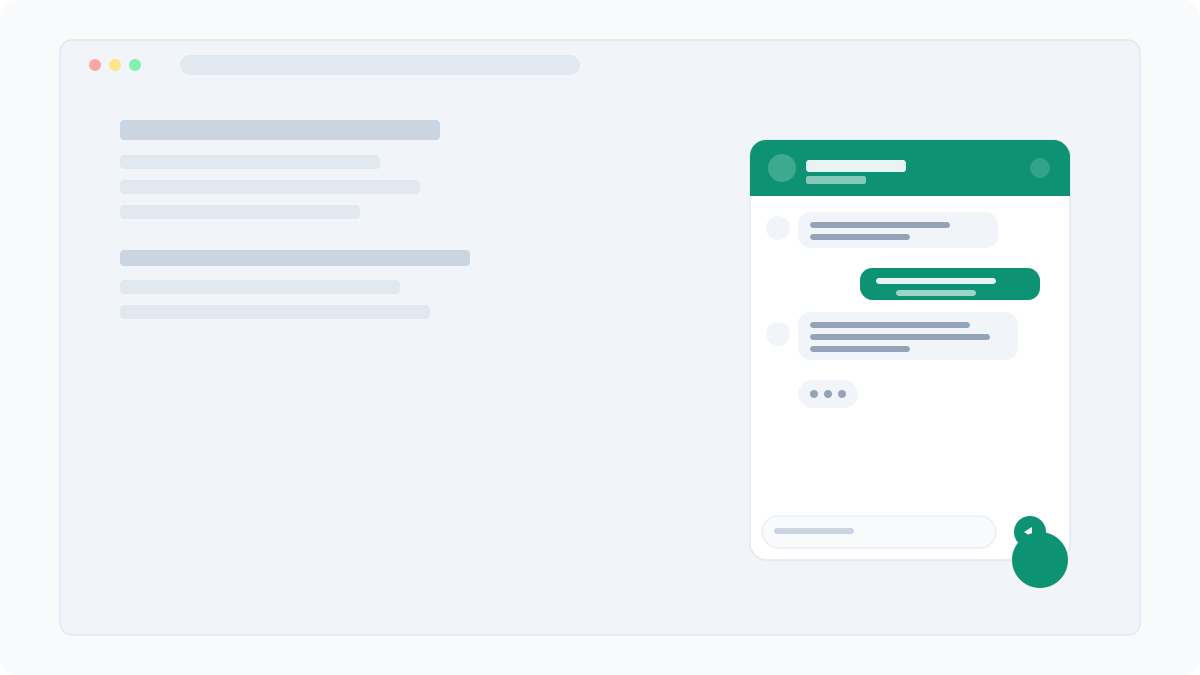
All changes are reflected in a live preview on the right side of the screen, so you can see exactly how the widget will look to visitors before it goes live.
Step 4: Embed the Code
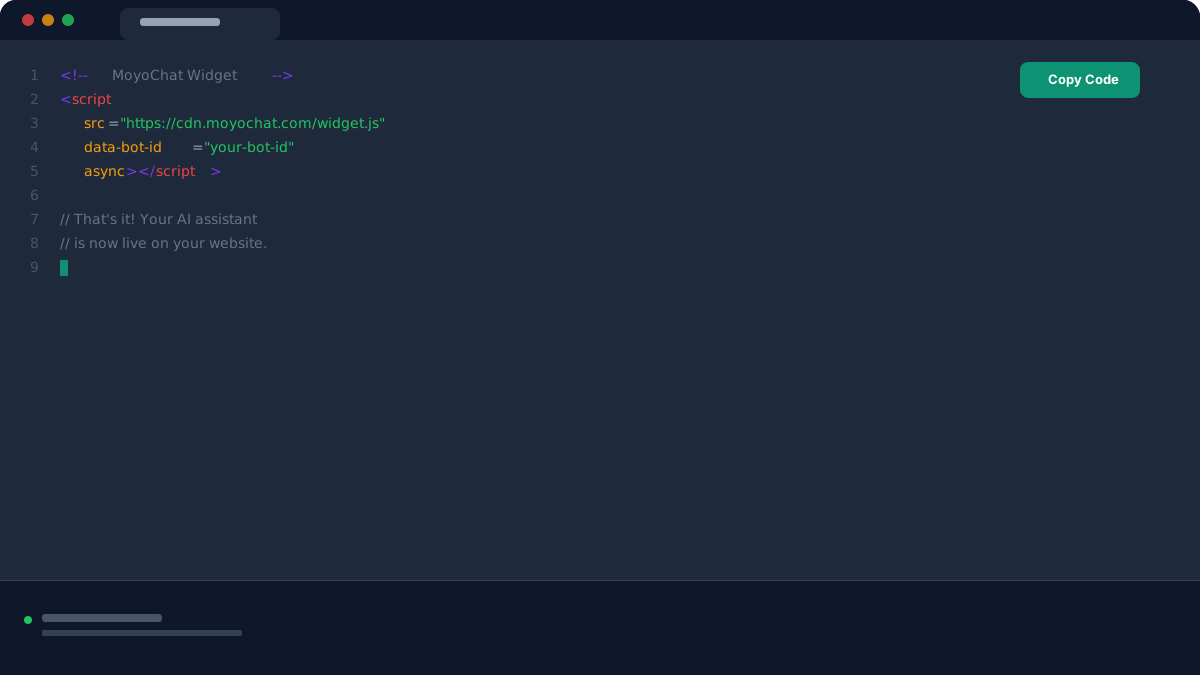
The final step is adding the chat widget to your website. MoyoChat provides a single line of JavaScript:
<script src="https://widget.moyochat.com/v1/chat.js" data-id="your-assistant-id" async></script>Paste this line just before the closing </body> tag in your website's HTML. If you are not comfortable editing HTML directly, here is how to do it on popular platforms:
WordPress
Go to Appearance → Theme Editor → footer.php and paste the script before </body>. Alternatively, use a plugin like "Insert Headers and Footers" to add the code without touching theme files.
Squarespace
Navigate to Settings → Advanced → Code Injection and paste the script into the Footer field.
Wix
Go to Settings → Custom Code, add a new code snippet, paste the script, and set it to load in the Body — End position.
Shopify
Go to Online Store → Themes → Edit Code, open theme.liquid, and paste the script before </body>.
You Are Live!
Once the script is embedded, your AI assistant is live and ready to help visitors. Within seconds, the chat widget will appear on your website, and you can watch conversations roll in from your MoyoChat dashboard.
What to do next
- Monitor conversations: Check the dashboard to see how visitors interact with your assistant. Look for common questions the AI struggles with and add supplementary content.
- Set up notifications: Configure email or webhook alerts so you are notified instantly when a lead is captured.
- Refine and optimise: Use conversation analytics to improve your assistant's responses over time. Read our guide on chatbot prompt best practices for tips.
- Enable lead capture: If you did not configure lead capture fields during setup, head to the settings panel to add them now.
Troubleshooting Common Issues
The widget does not appear
- Make sure the script is placed before
</body>, not inside<head>. - Check for JavaScript errors in your browser's developer console.
- Ensure your ad blocker is not blocking the widget script.
- Clear your browser cache and reload the page.
The AI gives incorrect answers
- Check that your website content is accurate and up to date.
- Add supplementary content to the knowledge base for topics not covered on your site.
- Adjust the assistant's instructions to guide its behaviour.
I want to change something after going live
No problem. You can update the widget's appearance, behaviour, knowledge base, and lead capture settings at any time from the dashboard. Changes take effect immediately — no need to update the embed code.
Start Capturing Leads Now
Setting up an AI chatbot for your website does not have to be complicated. With MoyoChat, the entire process takes under three minutes, and you do not need any technical skills. Sign up for free and have your AI assistant live today.